Workflow
From Street View to 3D Model in Under 10 Minutes (Free)
How to turn a Google Street View screenshot into a usable 3D mesh using only free tools. No Revit license. No photogrammetry rig. Just a browser and ten minutes.
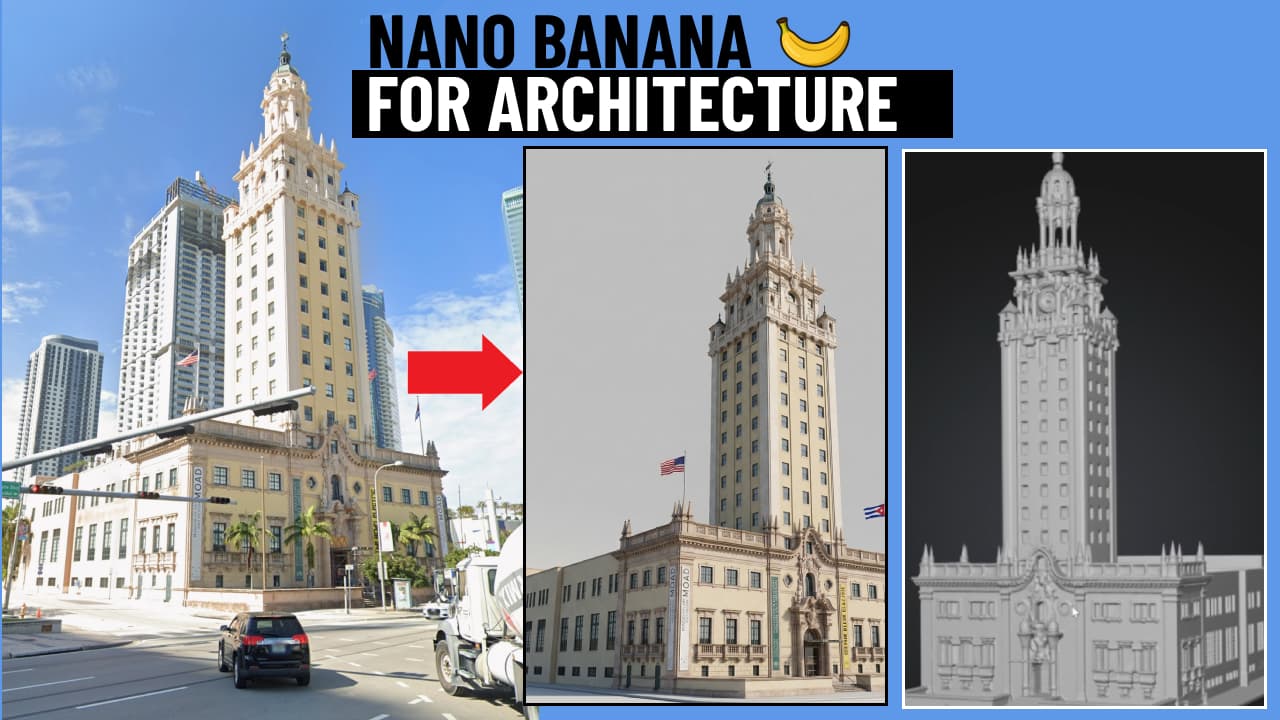
I was working on a feasibility study for a client site in lower Manhattan and needed a quick 3D context model. Opening Revit, setting up a mass, importing a topo — all of it would take an hour I did not have. I tried something different instead. Fifteen minutes later I had a 3D mesh I could screenshot and annotate. Here is the exact process.
Step 1 — Screenshot from Google Street View
Open Google Maps, drop into Street View at the site, and take a screenshot. No special export needed. The perspective view gives the AI enough context to reconstruct geometry. I used the Freedom Tower site for this test — a dense urban corner with clear facade articulation.
Tip: take two or three screenshots from slightly different angles if you want better depth coverage. The AI tools handle multi-view input better than single shots on complex facades.
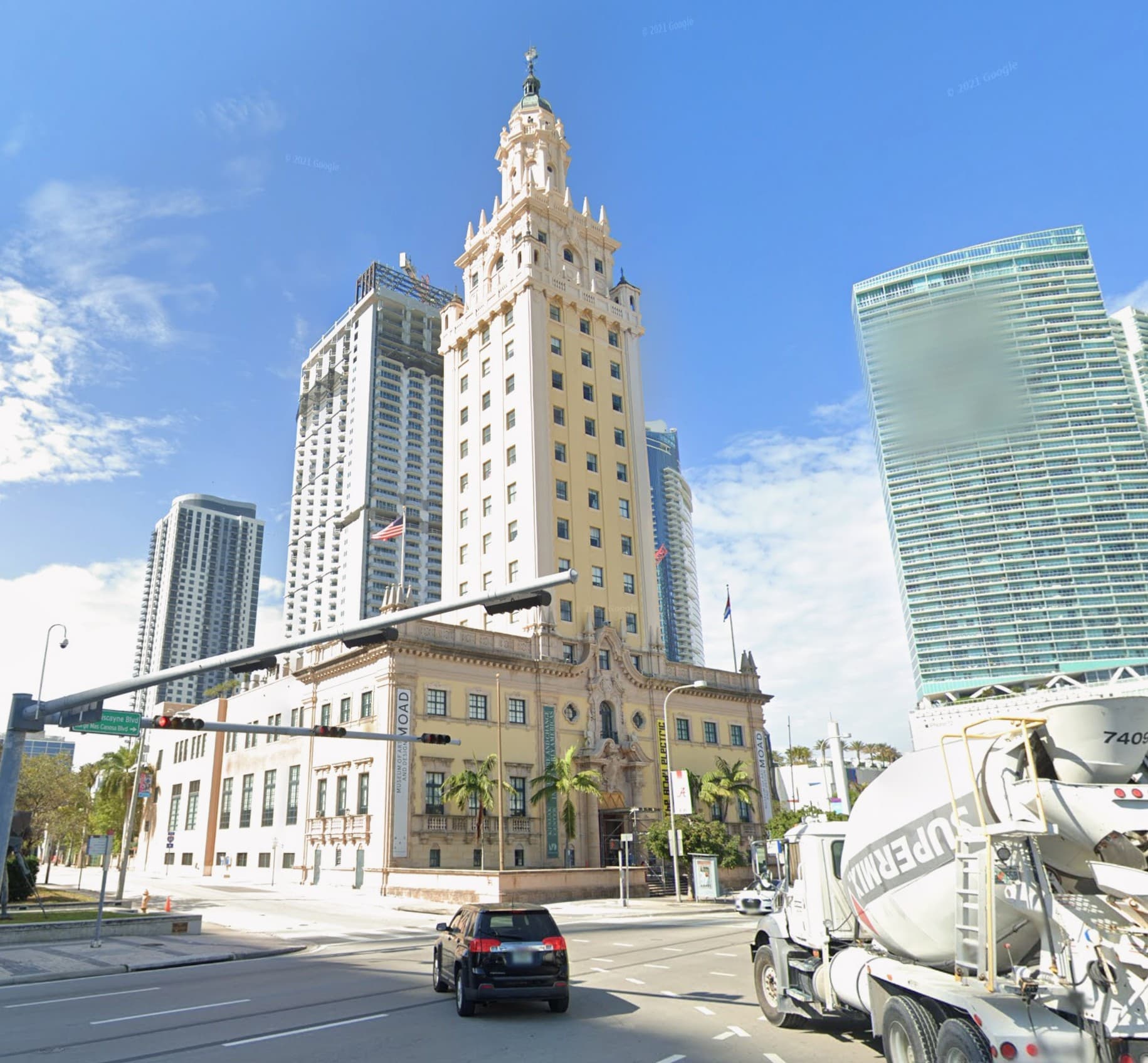
Source: Google Street View screenshot, lower Manhattan. No export tools needed.
Step 2 — Send to Gemini for geometry extraction
Open Google Gemini (free tier is sufficient). Upload the screenshot and prompt: "Describe the 3D geometry of the buildings in this image as a structured JSON object with approximate dimensions, floor counts, and building envelope type."
Gemini returns a structured description with estimated floor heights, building footprint proportions, facade articulation types, and setback notes. It does not generate a mesh directly — that comes next — but the structured output is what makes the next step reliable.
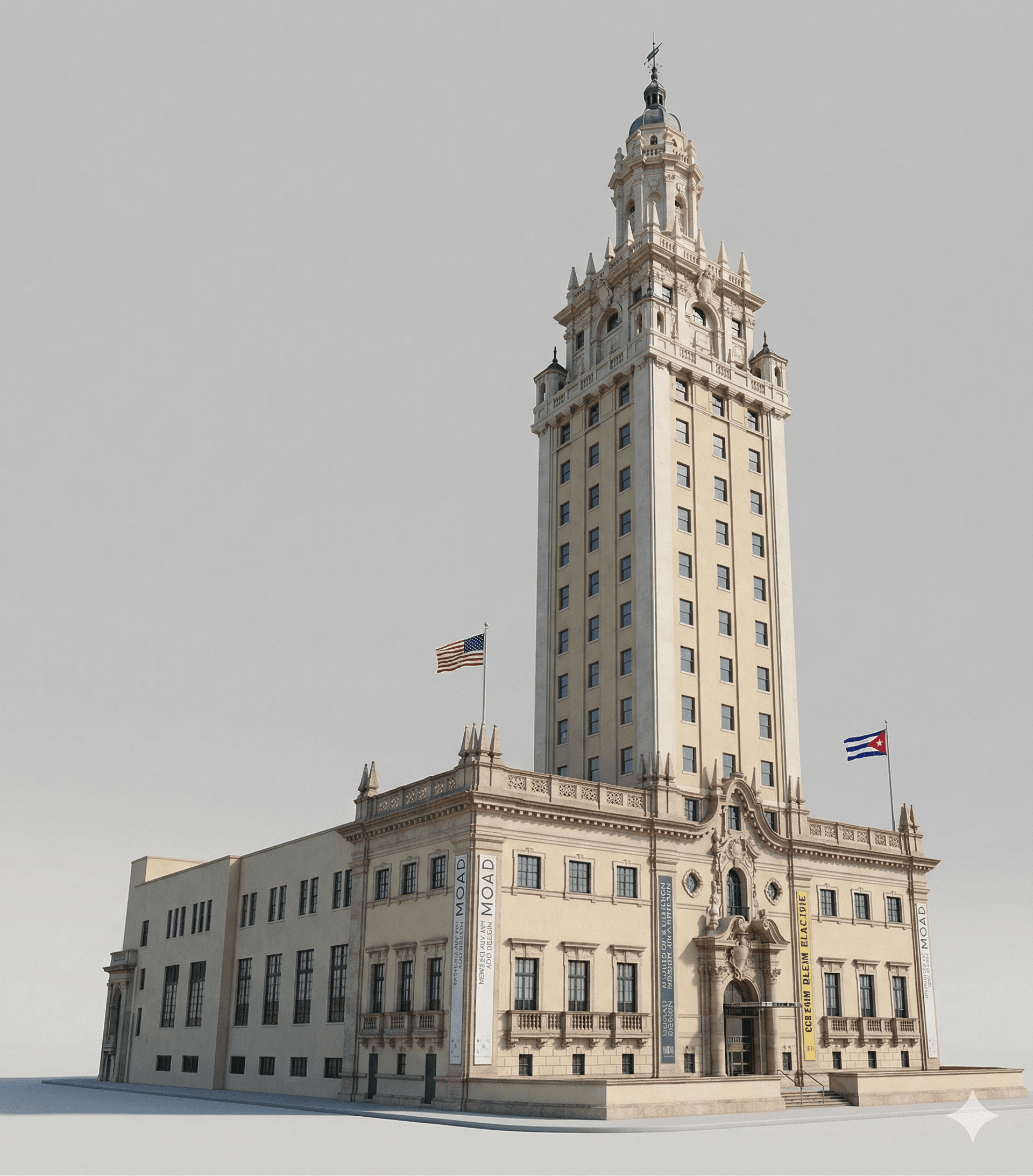
Gemini structured geometry description. Approximate but fast — enough for feasibility context.
Why this matters for architects
Most early-stage feasibility work does not need a precise model. It needs a fast model. Something you can annotate, screenshot for a client email, and discard when the real model catches up. This workflow produces exactly that — a throwaway context model in less time than it takes to open Revit and set up a new file.
Step 3 — Generate the mesh
Take the Gemini geometry description and feed it into a 3D generation tool. I used a free text-to-3D pipeline — the specific tool matters less than the prompt structure. The Gemini JSON output gives the generator clear dimensional constraints to work within instead of hallucinating geometry from scratch.
The result is a rough mesh — not construction-grade, but readable as a context model. Facades are simplified, windows become openings, and the massing captures the correct proportional relationships between towers.
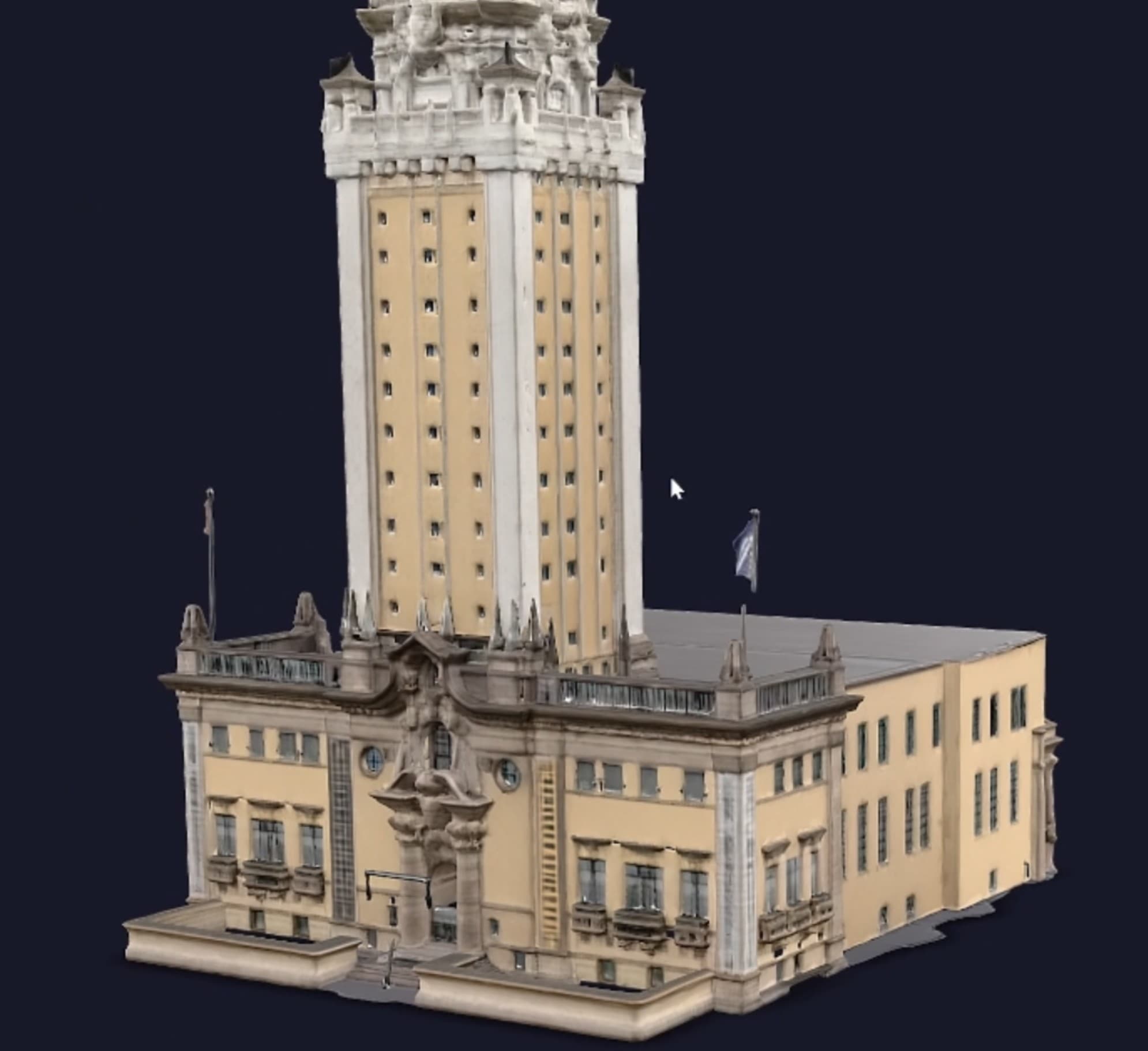
Generated 3D mesh from structured Gemini output. Massing and proportions are usable for early context studies.
When this is and is not useful
This workflow works best for urban feasibility context, client presentation images, zoning massing checks, and early adjacency studies. It is not a replacement for a survey, a precise Revit model, or anything that needs accurate dimensions for code compliance.
The real value is speed at the right moment. When a client asks what the site looks like at 10am on a Thursday meeting, and you have fifteen minutes before they arrive, this workflow gets you from nothing to something presentable. That is a narrow use case, but it is a real one.
The full stack — all free
Google Street View
Source imagery — no account needed
Google Gemini (free tier)
Geometry extraction to structured JSON
Text-to-3D pipeline (free tier)
Mesh generation from structured description
Screenshot / screenshot tool
Capture and annotate output
Where Datum Notes fits in
Once the client review happens, the decisions from that meeting need to land somewhere. Datum Notes is where the project management side of early-phase feasibility lives — paste the meeting transcript, pull out the decisions and action items, and keep the site analysis context attached to the project record. The 3D model is a deliverable. The decisions it generates are what you actually need to track.
Try it at Datum Notes — free for the first three projects.